

Most teams don’t set out to build a complicated file system. They start with a shared drive because it’s familiar, accessible and easy to use. Someone creates folders for the brand, campaigns and events. Other departments add their own folders, and the library expands as the organization produces more content.
For a while, that approach works. Then finding an asset begins to require knowing who created it, what they called it and where they decided to save it. Multiple versions appear in different folders. Teams download files to work on them, upload new copies and send links without always knowing whether the content is current or approved.
The shared drive has not necessarily stopped working. The job has changed.
The organization is not just storing files; it’s now managing a growing library of content that people need to find, understand, control and reuse. That’s when many teams begin comparing a shared drive with digital asset management.
Quick Answer: What’s the Difference Between a Shared Drive and a DAM?
A shared drive such as Google Drive, Dropbox or a network file server provides a central place to store, access and share files. It works well for collaborative documents, project folders, drafts and everyday team storage.
A digital asset management system, or DAM, is designed to manage valuable, reusable content such as brand assets, photography, video, campaign materials, product imagery and approved documents. It adds structure around those files so people can search using descriptive information, identify the appropriate version, understand usage restrictions and distribute content to different audiences.
Teams usually consider moving assets into a DAM when their primary challenge is no longer storage capacity, but finding the right content and managing how that content moves through the organization.
Shared Drive vs DAM: What Changes as a Team Grows?
Shared drives and DAM platforms can both store and share files. The differences become clearer when content volume, reuse and access needs increase.
| Capability | Shared Drive | Digital Asset Management System |
| Primary purpose | General file storage and collaboration | Managing, controlling and distributing reusable digital assets |
| Organization | Folders, filenames and platform-specific labels | Folders, descriptive information, tags and multiple ways to group the same asset |
| Search | File and folder names, document content and available filters | Descriptive details, custom fields and advanced search tools |
| Versions | File history or separately saved copies | Related versions kept together with clear approval status |
| Usage guidance | Usually maintained in separate documents or team processes | Rights, restrictions, expiration dates and approvals connected to the file |
| External access | Shared files, folders or links | Controlled links and organized sharing pages for different audiences |
| Workflow | Often coordinated through email, chat or project-management tools | Built-in review and approval tools, notifications and automation |
| Scaling | Depends heavily on consistent folder and naming practices | Designed to organize large libraries across teams, brands and audiences |
A DAM is not automatically better for every file. It’s better for assets that have continuing value and require more context or control than a folder can provide.
Where Shared Drives Create Hidden Inefficiencies

The cost of a shared-drive problem rarely appears as a separate line in your budget. It’s distributed across small, repeated tasks that gradually become part of the workday.
Searching Depends on Shared Memory
A folder structure makes sense to the person who created it. It can be much less clear to a new employee, another department or an external partner.
Finding an image might require knowing that the 2026 leadership portraits are stored under “Corporate,” not “People,” or that the final campaign video is in the agency folder rather than the campaign folder. When search depends on remembering someone else’s filing decisions, staff often have to ask a colleague for help, turning one person’s search into an interruption for someone else.
Your organization may know where its assets are—but that knowledge is concentrated in only a few people.
Copies Multiply Across Folders & Teams
The same logo may be copied into sales, marketing, partner and event folders. Campaign photography may be downloaded, renamed and uploaded for another project. Each copy creates another place where an outdated file can remain in circulation.
Duplication also makes cleanup harder. Removing an obsolete asset from one folder doesn’t remove the copies saved in other folders.
Version History Doesn’t Always Identify the Approved Version
A shared drive may preserve file history, but it doesn’t necessarily tell a user which version passed review or is approved for a particular channel.
Your team may compensate through filenames such as “final,” “approved,” or “use this.” Those labels become unreliable once another revision is requested or someone saves a copy outside the original folder.
Usage Information Becomes Separated From the File
An image may have a licensing expiration date, required credit line, model release or geographic restriction. When that information lives in a spreadsheet, an email, or a separate document, the person downloading the image may never see it.
The problem isn’t only whether the file can be opened. It’s also whether the organization can determine how that file may be used.
Asset Workflows Happen Somewhere Else
Shared drives hold files, but reviews and approvals often take place in email, chat and project-management tools. Staff members must reconstruct the history of an asset across several systems to determine who reviewed it, what changed and whether it’s ready for use.
Every manual handoff adds another opportunity for delay, duplication or uncertainty.
How Much Time Is the Shared Drive Actually Costing?
A simple search audit can bring to light these hidden inefficiencies.
For one workweek, ask participating staff to track time spent
- Searching for assets
- Asking colleagues to locate files
- Confirming which version is approved
- Recreating content that couldn’t be found
- Resending assets to internal or external users
- Checking usage rights or approval status in another system
Then use this calculation:
Number of employees × average minutes lost per day × workdays ÷ 60 = team hours lost per week
For an illustrative example, consider a team of 12 employees who each spend 15 minutes a day resolving asset questions.
12 employees × 15 minutes/day × 5 workdays ÷ 60 = 15 hours lost per week
Over the course of a year (52 weeks), that equates to 780 hours lost—and that’s before counting the cost of recreated work, delayed projects or incorrectly used content.
Multiplying those hours by your organization’s average hourly labor cost provides a more useful estimate than a general industry statistic. It reflects your team’s actual content, workflows and staffing.
For more on the ROI of DAM, read our DAM ROI executive brief.
How Do You Know When You Have Outgrown a Shared Drive?
Folder frustration alone doesn’t mean your organization needs a DAM. The stronger signals are recurring operational problems.
- Staff know an asset exists but can’t find it without help.
- Different teams use different versions of the same content.
- Assets are regularly recreated because the originals can’t be located.
- Approval status is maintained through filenames, email or individual memory.
- Rights and licensing information are stored separately from the files they govern.
- External partners repeatedly request assets from staff.
- New employees have difficulty understanding the folder structure.
- Teams need one asset to appear in several contexts without creating copies.
- Content volume is increasing faster than the organization can maintain its folders.
- Asset management depends heavily on one or two knowledgeable employees.
If you’re repeatedly experiencing several of these problems, your organization probably needs more than a new folder structure. It needs a different way to manage reusable content.
What Should Move From a Shared Drive Into NetX DAM?
Moving to a DAM doesn’t require transferring every document your organization owns. A selective migration usually produces a more useful library.
Strong candidates for NetX DAM include
- Approved logos and brand materials
- Photography and video intended for reuse
- Final campaign and creative assets
- Product images and supporting media
- Templates, publications and sales collateral
- Content distributed to agencies, partners or the public
- Assets with licensing, consent or usage restrictions
- Historical materials with continuing organizational value
Shared drives may remain appropriate for
- Meeting notes and internal working documents
- Budgets, schedules and administrative spreadsheets
- Early drafts that don’t need broader distribution
- Temporary project files
- Documents being actively co-authored
The practical goal isn’t to eliminate Google Drive or Dropbox, but to stop using general file storage as the primary management and distribution system for high-value digital assets throughout the organization.
How NetX Replaces Shared-Drive Workarounds
Find Assets Through Metadata, Not Folder Memory
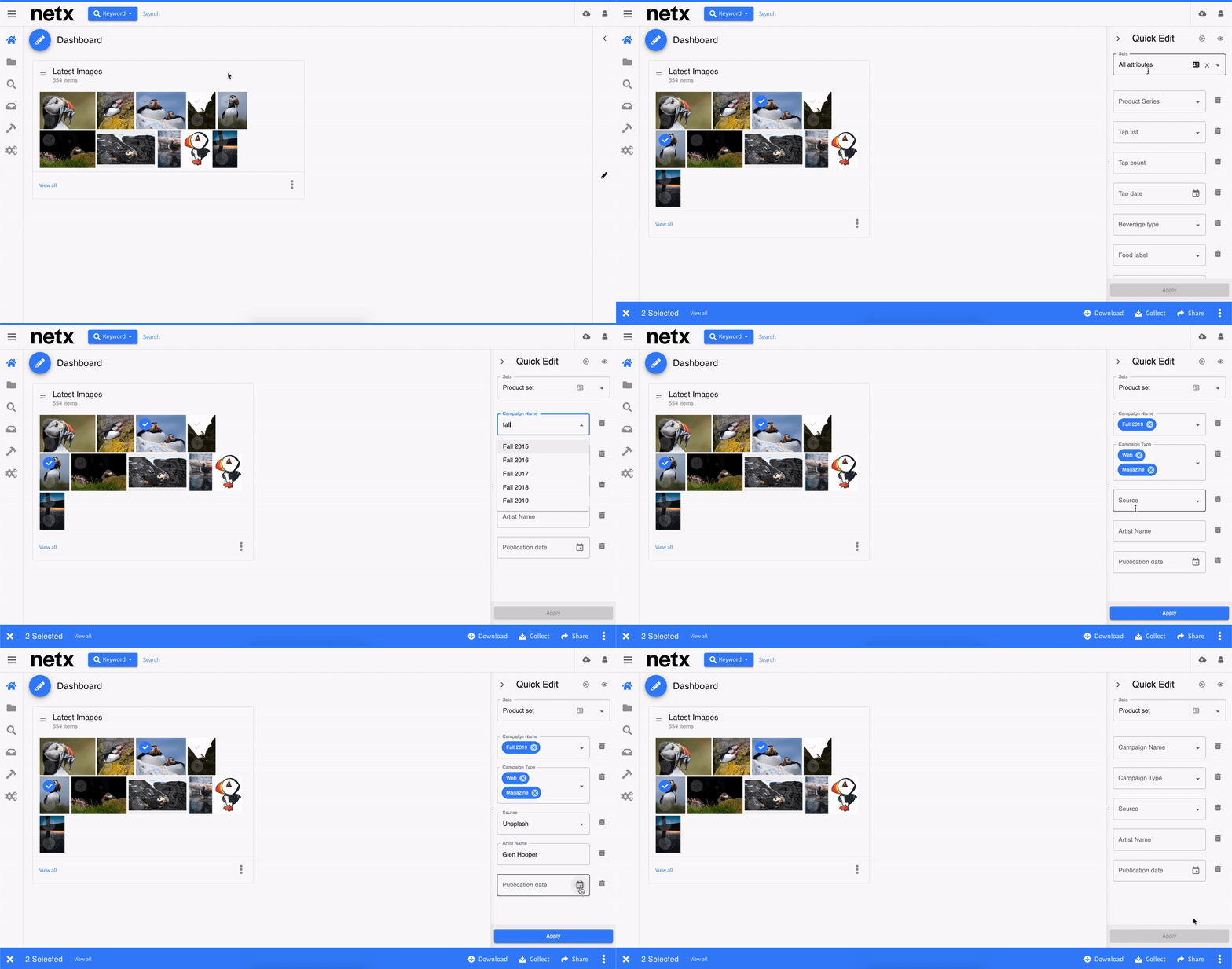
Metadata describes an asset using information such as campaign, subject, product, location, photographer, approval status or usage rights. This allows different users to find the same asset without knowing its filename or folder path.
NetX supports custom fields, standardized tags, information embedded in files and automated tagging tools that help your team organize content around how they actually search.
Keep Versions & Approval Information With the Asset
Instead of distributing separate copies across folders, your team can keep related versions and file formats together. Approval information stays with each asset, so users can see which version is current and ready to use before downloading.
Your team no longer has to interpret filenames such as “FINAL_v3,” search email threads for an approval or ask a colleague which file to use.
Automate Repetitive Asset Tasks
NetX can automate tasks when something changes—for example, when a file is uploaded, approved or assigned a new status. It can then organize the file, create alternate sizes or formats, apply a watermark or notify the next person in the review process.
Workflow automation helps your team reduce the manual steps that often surround files stored in shared drives.
Give Each Audience Appropriate Access
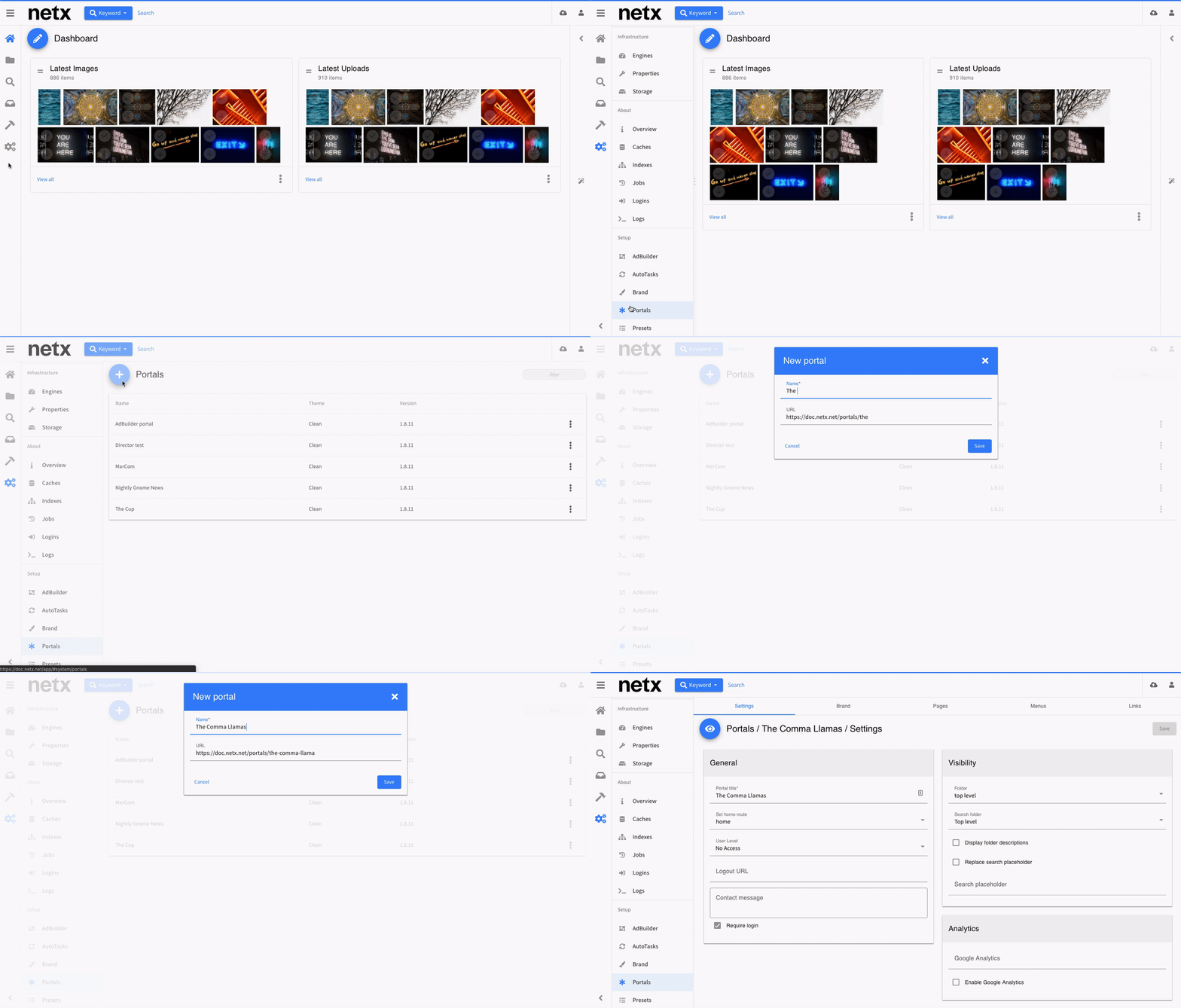
Internal teams, agencies, distributors and other partners don’t all need access to the entire asset library. NetX can provide access through permissions, controlled links and branded portals so each audience sees relevant, approved content.
This allows your organization to distribute assets without duplicating folders for every department or external group.
Keep Collaboration Connected to Assets
When feedback, reviews and approvals remain connected to the content, your team doesn’t have to piece together decisions from email and chat. NetX Collaboration Tools help participants review assets, track changes and manage approvals within the DAM workflow.
How to Prepare for the Move From Shared Drives to DAM
A successful transition begins before files are migrated.
Identify the Workflows Causing the Most Friction
Use the search audit to determine where staff members lose time. The strongest DAM use case may involve finding campaign photography, supplying product assets to partners, managing video approvals or tracking image rights.
Starting with a concrete workflow makes it easier to define what the DAM needs to improve.
Decide What Belongs in the DAM
Not every file in a shared drive needs to move. Prioritize content with continuing creative, operational, historical or legal value. Short-lived working files, abandoned drafts, redundant downloads and outdated copies should be reviewed, archived elsewhere or excluded from the migration.
This keeps the DAM focused on content people need to find, manage, reuse or preserve.
Define How People Need to Search
Ask users what they know when they begin looking for an asset. They may search by campaign, product, event, location, person, date, approval status or intended channel. Those answers should shape both the metadata your team uses and the way content is organized in the DAM.
Establish Responsibilities
Document who can upload, edit metadata, approve assets, manage permissions and retire outdated content. Technology can support these responsibilities, but it can’t define them for an organization.
Migrate in Manageable Phases
Begin with a high-value collection of frequently used assets. Test the organization, search terms and access rules with real users before expanding the migration.
Measure the Change
Repeat the search audit after implementation. Compare time spent locating assets, responding to requests, recreating content and confirming approvals. The clearest evidence of improvement will come from the work your team no longer has to perform.
Frequently Asked Questions
Is a DAM a good Google Drive alternative for teams?
A DAM is better suited to teams managing a large, reusable library of visual, brand, product or media assets. Google Drive may remain the preferred choice for collaborative documents and general office files. Many organizations use both, assigning each a different role.
Can NetX replace Dropbox?
NetX can replace Dropbox as the primary place to organize, manage and distribute approved digital assets. An organization may still use Dropbox for temporary sharing, drafts or other general storage needs.
Dropbox vs DAM: What’s the difference?
Dropbox is primarily designed to store, synchronize and share files. A DAM adds asset-specific metadata, search, version history and approval status, usage information, workflow tools and controlled distribution.
Do we need to migrate every file into a DAM?
No. A DAM should contain files with continuing organizational value. Temporary documents, administrative files and early drafts can remain in general storage when they don’t require DAM-level search, control or distribution.
When should a small team consider DAM?
A small team may need a DAM when content volume or complexity creates recurring problems, even if the number of users remains low. Rights-managed photography, frequent external requests or an expanding video library can justify a DAM before the organization becomes large.
Move Beyond File Storage With NetX
Shared drives remain useful tools. The need for DAM emerges when your organization expects its content library to do more than hold files.
NetX helps teams make assets easier to find, identify what is approved, keep usage information connected to content and distribute files without rebuilding the same folder structure for every audience. The result is not merely a more organized library; it’s less time spent managing around the limitations of storage.
If your team is spending more time finding, confirming and sending assets than using them, see how NetX can replace shared drives for your digital asset workflows.